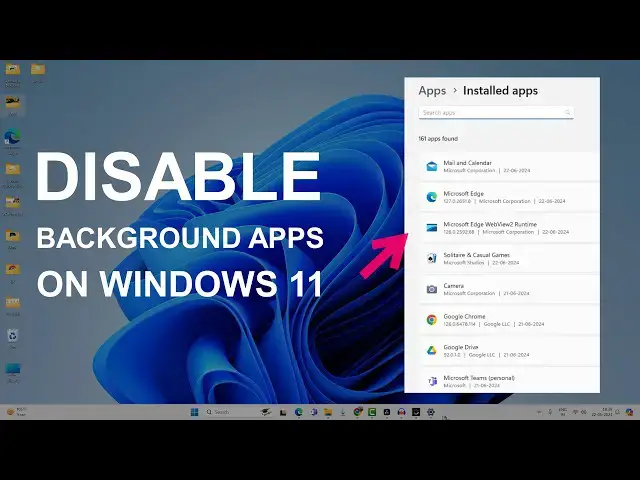

How to Disable Background Apps on Windows 11 - 3 Ways
Mar 5, 2025

The background apps in Windows 11 take system resources and make your PC run slower. However, you can disable background apps and free up the system resources, such as CPU and Memory, to make the PC run faster and snappier.
The earlier builds of Windows 11 had a one-click option to disable all background apps, but not with the recent builds.
Now you have 3 options to stop apps from running in the background.
1. Stop background apps using Advanced options.
2. Disable background apps using the Group policy editor.
3. Turn off background apps using the Registry editor.
Follow these steps -
00:00 Intro
00:15 Disable background apps from Advanced Options
01:32 Checking Windows Edition
02:09 Changing setting in Group Policy Editor
03:11 Disable BG Apps using Registry Editor
04:19 Enable background apps
04:38 Group policy changes in the registry
05:37 Outro
Show More Show Less #Software
#Operating Systems
#Other